 DongDong Park
Make a motion game in Scratch with Video Sensing
Updated
Scratch 3, released in January 2019 by the Lifelong Kindergarten group at the MIT Media Lab, comes with a Video Sensing extension. With the computer’s camera on, it reports how much the part of the picture under a sprite is moving, and in which direction. Two or three of its blocks are enough to build motion games such as wave-to-pop balloons or a run-in-place step counter: a good project for kids around 10 to 12 in a computing class or a coding club.
Getting ready
- A computer with a camera (a laptop’s built-in webcam is fine), running Scratch online or the Scratch app.
- Click Add Extension at the bottom left and choose Video Sensing. The first time, the browser asks whether Scratch may use the camera: click “Allow”.
- Sit or stand about 3 feet (1 m) from the computer so the camera sees your waving hand. Keep the room bright and don’t sit with your back to a window.
The four blocks you need
| Block | What it does |
|---|---|
| when video motion > (10) | A hat block: when the part of the picture under this sprite moves more than this number, the blocks below it run (on the Stage, it watches the whole picture) |
| video (motion) on (sprite) | Reports a number: how much that part of the picture is moving right now (0 to 100). Switch the menu to “direction” to get which way |
| turn video (on) | The menu has “off”, “on” and “on flipped”. With “on”, the picture is mirrored like a mirror (raise your right hand and it appears on the right); “on flipped” turns the mirroring off. For games, “on” is usually what you want |
| set video transparency to (50) | How see-through the camera picture behind the Stage is: 0 is clearest, 100 is invisible |
Project 1: wave to pop the balloon (30-second score)
A balloon sits on the Stage. Wave your hand over it, and it pops over to a new spot and you score a point; after 30 seconds the game says your score. You need just one sprite and one variable. Scratch’s own Video Sensing tutorial has a balloon-popping project too, which is worth watching together first.
- Delete the default sprite and pick a balloon from the sprite library (it comes with a “Pop” sound).
- Make a variable called “score” (for all sprites).
- Give the balloon the two scripts below.
- when ⚑ clicked
- turn video (on)
- set video transparency to (50)
- set [score] to (0)
- go to x: (pick random (-200) to (200)) y: (pick random (-130) to (130))
- show
- reset timer
- wait until <(timer) > (30)>
- say (join (Time’s up! Score: ) (score)) for (3) seconds
- stop [all]
- when video motion > (30)
- change [score] by (1)
- start sound (Pop)
- go to x: (pick random (-200) to (200)) y: (pick random (-130) to (130))
Try it: wave over the balloon and see whether the score goes up. The 30 is the threshold, how much movement counts as a hit. Too small, and the slightest sway pops the balloon; too large, and even a big wave does nothing. Let students change it a few times until it feels right: that is debugging.
Project 2: a run-in-place step counter
This one ignores sprites and watches the whole picture. You run on the spot in front of the camera, the picture moves and pauses, and each burst of movement counts as one step.
- when ⚑ clicked
- turn video (on)
- set [steps] to (0)
- forever
- if <(video (motion) on (stage)) > (40)> then
- change [steps] by (1)
- next costume
- wait (0.3) seconds
- say (steps)
The “wait 0.3 seconds” is the key. Without it, one knee lift moves the picture for several frames and gets counted as several steps. Try 0.2 and 0.5 and see which comes closest to your own count. That is feedback in action: test, compare, adjust.
Why it gets things wrong
Video Sensing doesn’t know what a person is. About 30 times a second it compares each frame with the one before and works out how much an area changed and in which direction. So:
- Someone walking past behind you, a curtain moving or a light flickering all count as motion.
- Clothes close in color to the background change the picture very little when you wave, so nothing happens.
- It can’t tell a hand from a head, and it has no idea whether you jumped or squatted.
To know what pose someone is in, a program has to find the person and their body parts in the picture, which is a different kind of technology; see the last section of how motion games work. Early camera games in the history of motion gaming also only watched for change in the picture; see the EyeToy chapter.
Ideas for what to add next
- Add a second balloon, and make the rule left hand for the left balloon, right hand for the right one.
- Let each balloon stay for only 2 seconds; if nobody hits it, it floats away and you lose a point. Good for reactions.
- Turn steps into distance (say, half a meter, about 1.6 feet, per step) and race classmates for 1 minute.
- Play a ready-made motion game such as Bubble Pop or Mole Bop and compare it with your own: where does it respond better, and why?
Running it with a class or club
- Work in groups of two or three per computer: one builds, one plays, one keeps the record.
- Turn the threshold into an experiment: with thresholds of 10, 30 and 60, wave 10 times each and write down how many waves counted and how many times the balloon popped by mistake. Then each group picks its best number and explains why groups ended up with different ones (light, background, distance).
- No webcams in the computer lab? Plug in a few USB webcams and rotate the groups, or demonstrate on the projector while students build, then let groups come up to test.
- At the end, turn the camera off (turn video off).
If the camera won’t start, check that the browser is allowed to use it (the icon at the left of the address bar), that no other program is using it, and that a school computer hasn’t had its camera disabled. Testing the camera on another website first quickly tells you whether the problem is the camera or Scratch.
In this series
Games mentioned here
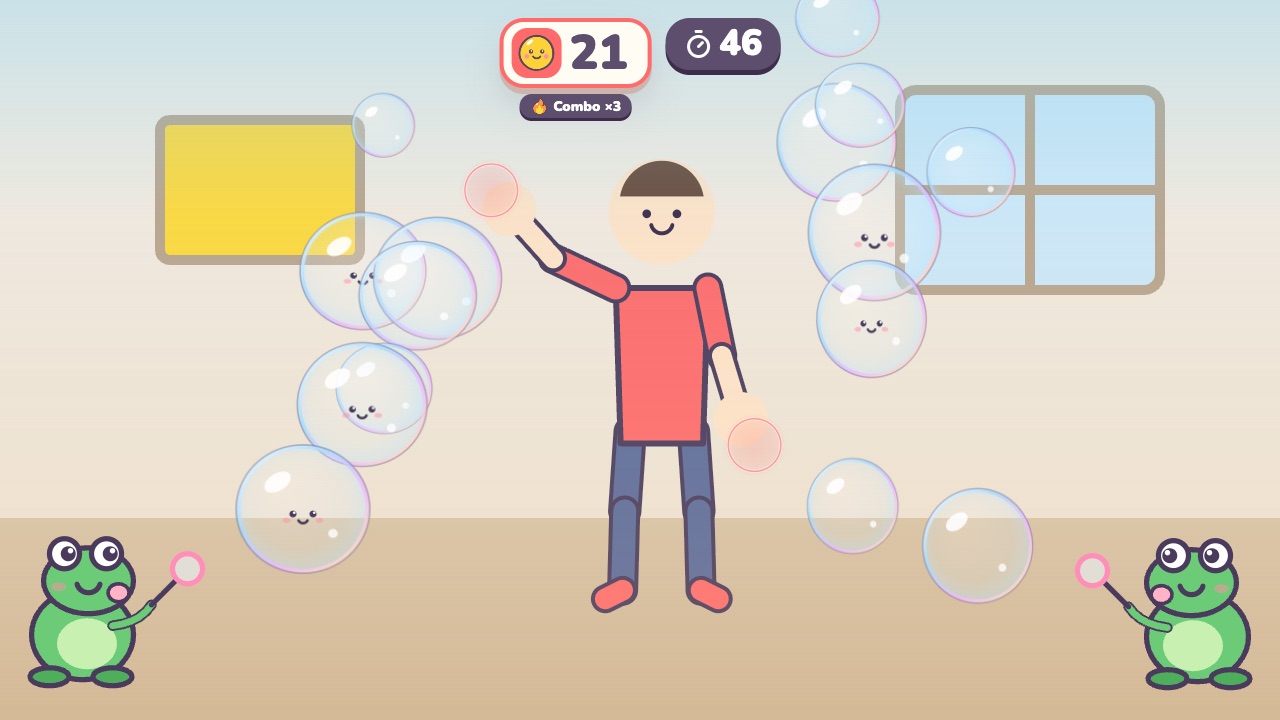 Bubble PopPop the bubbles floating toward youAges 3–7 · Light activity · Hands / Calm
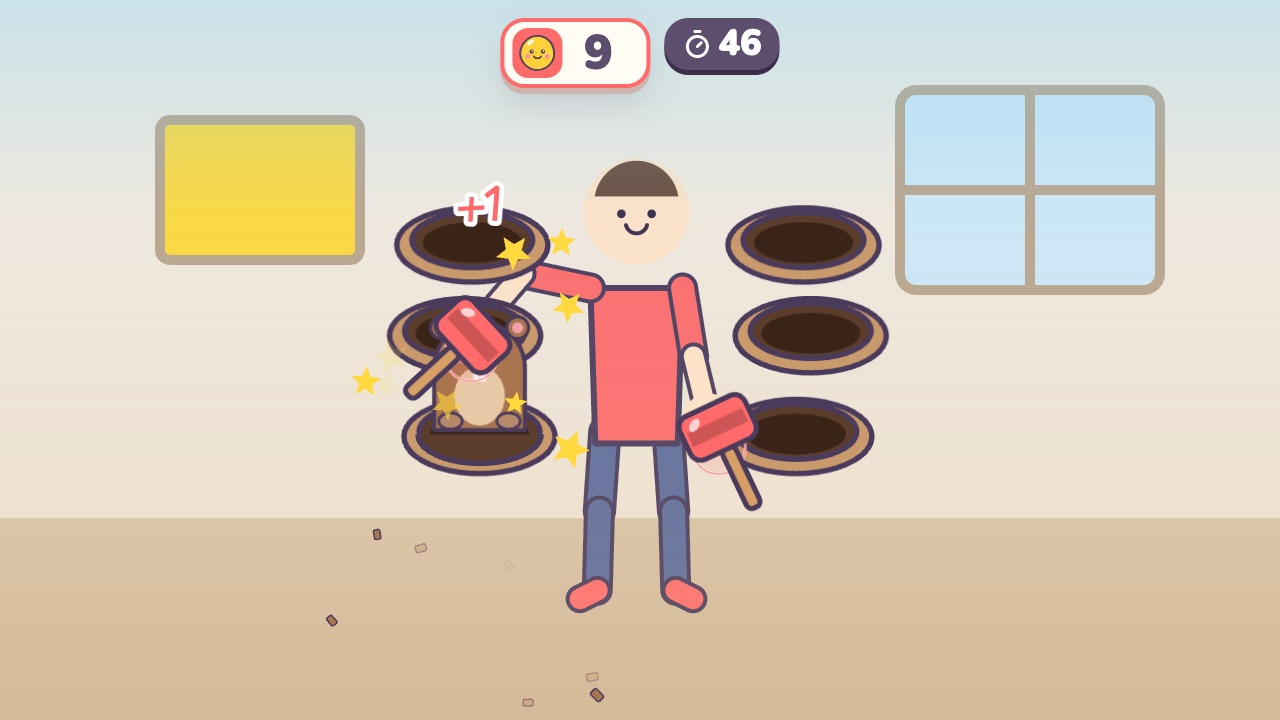 Mole BopBop the moles that pop up beside you, but not the ones in hard hatsAges 3–9 · Moderate activity · Hands
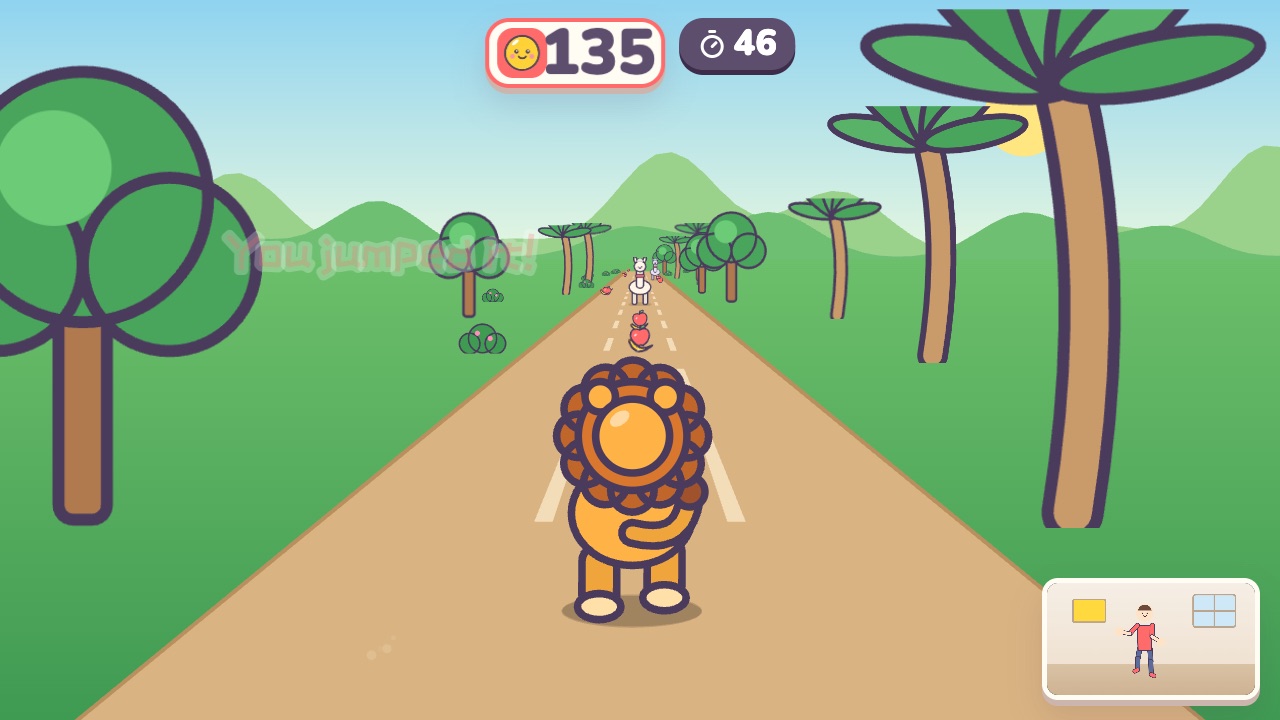 Forest RunRun on the spot, dodge left and right, and jump over the logsAges 4–10 · High activity · Run & jump / Whole body
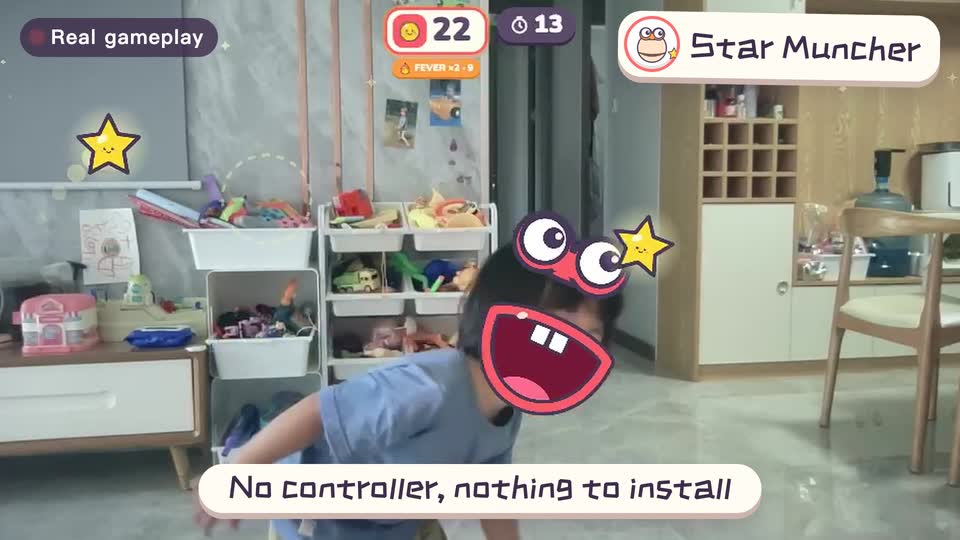
Real footage · 14 s
Kids stand in front of the computer and just move
100+ motion games for ages 3 to 18. Open the website and play: nothing to install, and the camera picture stays on this computer.
Sources
- MIT Media Lab Introduces Scratch 3.0. MIT News Office. January 8, 2019; Scratch 3.0 was released by the Media Lab’s Lifelong Kindergarten group on January 2, 2019
- Source code of the Scratch Video Sensing extension (scratch3_video_sensing). Scratch Foundation. Block definitions and comments on how motion is measured