 DongDong Park
On a TV or projector: put the game on the big screen
Updated
One thing to remember: the camera and the game both run on the device that films the players (a computer, iPad or phone), and the TV is just a bigger screen. You don’t put the game “on the TV”. You show that device’s picture there, while its camera stays pointed at the players.
The quickest way: open DongDong Park and tap “Play on your TV” on the start screen. It walks you through the steps for the device in your hands. Open the TV helper.
Option 1: an HDMI cable (best)
- Connect the computer to the TV with an HDMI cable. If the laptop has no HDMI port, use a USB-C to HDMI adapter.
- Press Input (or Source) on the TV remote and choose that HDMI port.
- Show the same picture on both screens. On Windows, press Win + P and choose “Duplicate”. On a Mac, open System Settings → Displays and turn on mirroring. On a Chromebook, mirroring is under Settings → Device → Displays.
- Open the site in Chrome or Edge and press F for full screen.
A cable has almost no delay, so even games played on the beat, like Jump Rope Champ, Rhythm Steps and Air Drums, stay in sync. iPads and phones can use a cable too; see below.
Option 2: wireless from a computer
- Windows. If the TV supports it (TV menus often call it “wireless display” or “screen mirroring”), press Win + K and choose the TV.
- Mac. If the TV supports AirPlay (an Apple TV, or a TV with AirPlay in its settings), open Control Center and choose Screen Mirroring.
- Chromecast or Google TV. In Chrome, click ⋮ at the top right, then “Cast, save, and share” → “Cast…”. Under “Sources”, choose “Cast tab”, then pick the TV.
Option 3: from an iPad or iPhone
- The TV needs to accept AirPlay: an Apple TV, or a TV with AirPlay in its settings (turn it on there). Put the TV and the iPad or iPhone on the same Wi-Fi.
- Swipe down from the top-right corner to open Control Center, tap Screen Mirroring and pick the TV. (On an iPhone with a Home button, swipe up from the bottom.)
- Turn the iPad or iPhone sideways and stand it below the TV, front camera facing the players. Turn rotation lock off (the padlock button in Control Center) so the picture turns with it.
- Open the site in Safari and start a game.
Use Screen Mirroring, not the cast button inside a video app. That button only sends videos, so the game won’t show up.
Rather use a cable? Plug in a USB-C to HDMI adapter (Apple’s Lightning to HDMI adapter for older models with a Lightning port), then choose that HDMI input on the TV.
Option 4: from an Android phone or tablet
- Turn on screen mirroring on the TV (it may be called “Screen mirroring” or “Miracast”), and put the TV and the phone on the same Wi-Fi.
- Swipe down from the top of the screen, tap the cast tile and pick the TV. The name differs: Samsung calls it “Smart View”, Pixel “Screen cast”, others “Screen mirroring”.
- Turn the phone sideways and stand it below the TV, front camera facing the players, with auto-rotate on.
Wireless runs a little behind
With any wireless option, the picture on the TV shows up a moment after the move. You’ll hardly notice in Fruit Slash, Bowling or Bubble Pop. For rhythm games, let DongDong Park know you’re casting wirelessly: go through “Play on your TV” and tap Done at the end, or set TV casting to Wireless in the game’s settings, and the beats are judged by what’s on the TV. If it still feels late, choose “Still behind”. For the snappiest play, a cable is still best.
A projector
It works just like a TV: connect it with an HDMI cable, or mirror to it wirelessly if it supports that. If the picture looks washed out, dim the lights near the screen, but keep the spot where the players stand well lit. The camera needs light, so don’t darken the whole room.
Where the camera goes
- Put the computer, tablet or phone below or in front of the TV, with the camera facing the open floor at about the players’ chest height. A stand keeps a tablet or phone from tipping over mid-game.
- A closed laptop lid covers its camera. Either leave the lid open in front of the TV, or plug in a USB webcam and set it on top of the TV or on the TV stand.
- Players stand 7 to 10 feet (2 to 3 m) from the camera, in view from head to toe. The first time, run the device check.
- Nobody has to walk back to the keyboard between rounds: on the start and results screens, a player can raise a hand, point at a button and hold still for a moment to press it.
Common questions
Can a smart TV open the site by itself?
Most TVs’ built-in browsers can’t use a camera and aren’t fast enough for the games. Play on a computer, tablet or phone and show it on the TV instead.
Can I mirror a phone to the TV?
Yes. Turn it sideways and prop it up below the TV with the front camera facing the players; the steps are above. Mirroring uses a lot of battery, so plug it in for longer sessions.
Why are there black bars, or why is the picture cut off at the edges?
In the computer’s display settings, choose the resolution the TV recommends (usually 1920 × 1080), or turn off “overscan” in the TV’s picture settings. Black bars at the sides are normal when mirroring an iPad or phone: its screen has a different shape from the TV’s.
Room and camera basics are in the setup guide, and more answers are in the FAQ.
Play now →Run the device check
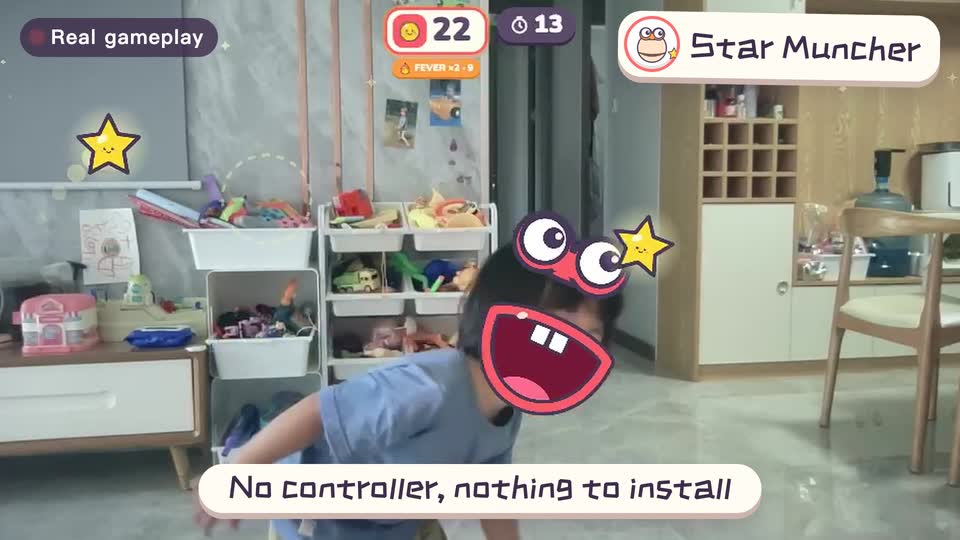
Real footage · 14 s
Kids stand in front of the computer and just move
100+ motion games for ages 3 to 18. Open the website and play: nothing to install, and the camera picture stays on this computer.