 DongDong Park
Setup: what you need to play
Updated
A computer with a camera and a few steps of clear floor are all it takes. There is no controller and nothing to install: the camera sees the player’s whole body, and the game follows along. Five minutes of setup makes it work well the first time.
What you need
- A computer. Windows, Mac or Chromebook. A laptop is fine.
- A browser. A recent version of Chrome or Edge works best. The first time you play, the browser asks to use the camera: choose “Allow”.
- A camera. The webcam built into a laptop is enough. A USB webcam is handy because you can put it wherever you like.
- A microphone (optional). Only a few sound activities use it.
Set up in five steps
- Put the camera at about chest height, facing the open floor. Too low and it only sees legs; too high and it loses the feet.
- Clear the floor. About 6 by 6 feet (2 m × 2 m) in front of the camera, with furniture moved aside and nothing slippery underfoot.
- Light the player. Turn on the lights, and don’t stand with a bright window behind you, or the camera only sees a dark shape.
- Step back. Stand 7 to 10 feet (2 to 3 m) from the camera so it sees you from head to toe. Games that watch your feet, such as Soccer Kick and Star Stomp, need another step or two. Before each round, a box on screen shows where to stand and tells you to come closer or move back.
- Run the device check. The one-minute device check looks at the camera, the light, your standing spot and the computer’s speed, and tells you what to change.
Playing with a group
Connect the computer to a projector, a TV or a classroom display with an HDMI cable, and press F for full screen. The camera stays on the computer, pointed at the players. On a TV or projector has the details, and the guides for classrooms and families explain how to run turns.
If the game doesn’t follow your moves
- Moves are missed. It is almost always light or distance. Add light, get the window out of the background, and step back until your whole body fits in the picture.
- The picture stutters. Close other tabs and programs. If it still stutters, open the settings and switch Tracking quality to “Fast”. A dark room slows the camera down too, so more light helps here as well.
- There is no camera picture. Check that the browser is allowed to use the camera (the icon at the left of the address bar), that no other program is using it, and that the lens cover is open.
- People keep walking through. Have everyone who is waiting stand off to the side, out of the camera’s view.
Not sure how a game works? Every game has a demo mode: a cartoon kid plays a round so everyone can watch first. Watch the Bubble Pop demo.
Quick access
In Chrome or Edge, the Install button in the address bar puts the site on the desktop like an app, so there is no address to type next time.
You can play two rounds without signing in: pick a game →
Play now →Run the device check
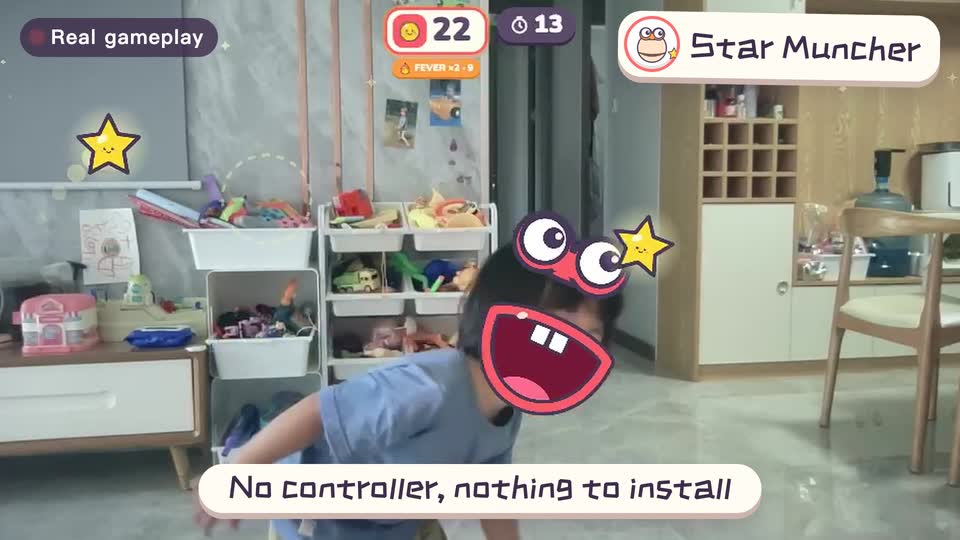
Real footage · 14 s
Kids stand in front of the computer and just move
100+ motion games for ages 3 to 18. Open the website and play: nothing to install, and the camera picture stays on this computer.