 DongDong Park
Install DongDong Park like an app, on the desktop or home screen
Updated
DongDong Park is a website: it isn’t in an app store and there’s no installer. But browsers have a built-in install option that puts it on your computer’s desktop or your tablet’s or phone’s home screen, with its own icon. It opens full screen, there’s no address to type, and games you’ve played before work even without internet. It’s worth doing on classroom computers and the family tablet.
What changes once it’s installed
- One tap to open. The DongDong Park icon sits on the desktop, in the Start menu or on the home screen, so kids can open it themselves.
- Full screen. No address bar or tabs: it looks cleaner on a big screen, and kids don’t click off to other websites.
- Works offline. Once you’ve opened it, it opens without a connection too. Every game you’ve played works; a game you haven’t tried yet needs the internet once to load.
- Progress that sticks. On iPad, iPhone and Mac, Safari can clear what a website has saved (scores, stickers, streaks) when the site hasn’t been opened for 7 days. Once it’s on the home screen, that doesn’t happen.
- It’s still the same website and the same account, and installing it costs nothing. Only the way you open it changes.
Chrome and Edge on Windows and Mac
- Go to dongdongpark.com.
- Look at the right end of the address bar for a small install icon (a screen with a down arrow; hover over it and it says “Install”). Click it, then click “Install” in the box that pops up.
- Can’t find it? Open the browser menu (the three dots at the top right) and look for “Install DongDong Park”. In Chrome it may be under “Cast, save, and share”; in Edge, under “Apps”.
- After you’ve played a few rounds, a tip at the bottom of the games page also offers an “Install” button that does the same thing.
- Once it’s installed, it opens in its own window, and the icon appears on the desktop and in the Start menu (on a Mac, in Launchpad and the Applications folder).
Safari on iPad and iPhone
- Open dongdongpark.com in Safari.
- Tap the Share button (a square with an arrow pointing up) at the bottom of the screen, or at the top on iPad.
- Scroll down, choose “Add to Home Screen”, then tap “Add”.
- Go back to the home screen: the DongDong Park icon is there. Open it from the icon and it fills the screen.
To play, stand the tablet up with the front camera facing your child, about 7 feet (2 m) away, with their whole body in the picture.
Safari on a Mac
Open the site, then choose File → Add to Dock in the menu bar. A DongDong Park icon appears in the Dock.
Android phones and tablets
Open the site in Chrome, tap the menu at the top right, and choose “Add to Home screen” or “Install app”.
Which classroom computer to install it on
- The computer connected to the classroom display. With an icon on the desktop, a student helper can open it, and you don’t have to type the address every lesson. Some school computers reset themselves when they restart; on those, install it again, or open the site once before class.
- Your own laptop. Install it once and it stays. Take the laptop to any classroom and plug in the projector.
- One computer shared by several classes. Installing makes no difference here. Set up one class per group, so each has its own roster and scores and nothing gets mixed up.
At home: tablet or computer?
You can install it on both. A computer has a bigger screen and can connect to the TV, which suits the living room; a tablet is light and stands up anywhere for a quick round. Installing on a tablet has one more benefit: Safari won’t clear your kids’ scores, stickers and streaks. Wherever you install it, sign in with the same grown-up account and the scores show up on both devices.
How updates arrive
- There’s no app store to update from and nothing to reinstall.
- When a new version is out, a note at the top of the screen says “DongDong Park has a new version”. Tap “Refresh” to switch to it.
- The note never interrupts a game: it waits until the round is over and you’ve left the game.
- Classroom computers that stay on all day find new versions by themselves too. Tap “Refresh” when you see the note.
How to uninstall it
- Chrome and Edge on Windows and Mac: open DongDong Park, click the menu (three dots) at the top right of its window and choose “Uninstall DongDong Park”. On Windows you can also remove it under Settings → Apps.
- iPad and iPhone: press and hold the icon on the home screen and choose “Delete Bookmark” or “Remove App”.
- Safari on a Mac: right-click the icon in the Dock and choose Options → Remove from Dock. The app also sits in the Applications folder; drag it to the Trash to remove it completely.
- If you tick “Also clear data” when uninstalling, scores on this device that aren’t saved to a signed-in account are deleted too. Scores in a signed-in account aren’t affected.
Common questions
- Is it any different from opening it in the browser? No. Same website, same scores. It works either way; installing is just more convenient.
- I can’t see the install icon. It may already be installed, or the browser may be out of date. Update Chrome or Edge to the latest version and look again.
- The school computer resets every time it restarts. Install it again after a restart, or just open the site once before each class.
- Do I need to install anything else? No. Allow the camera (and the microphone, for the few games that use it) the first time the browser asks. Before the first round, run the device check.
Once it’s installed, three good ones to start with: Red Light, Green Light, where everyone freezes the moment they hear “red light”; Fruit Slash, where one swing cuts the fruit in half; and Jump Rope Counter, which counts how many jumps you do in a minute.
Games mentioned here
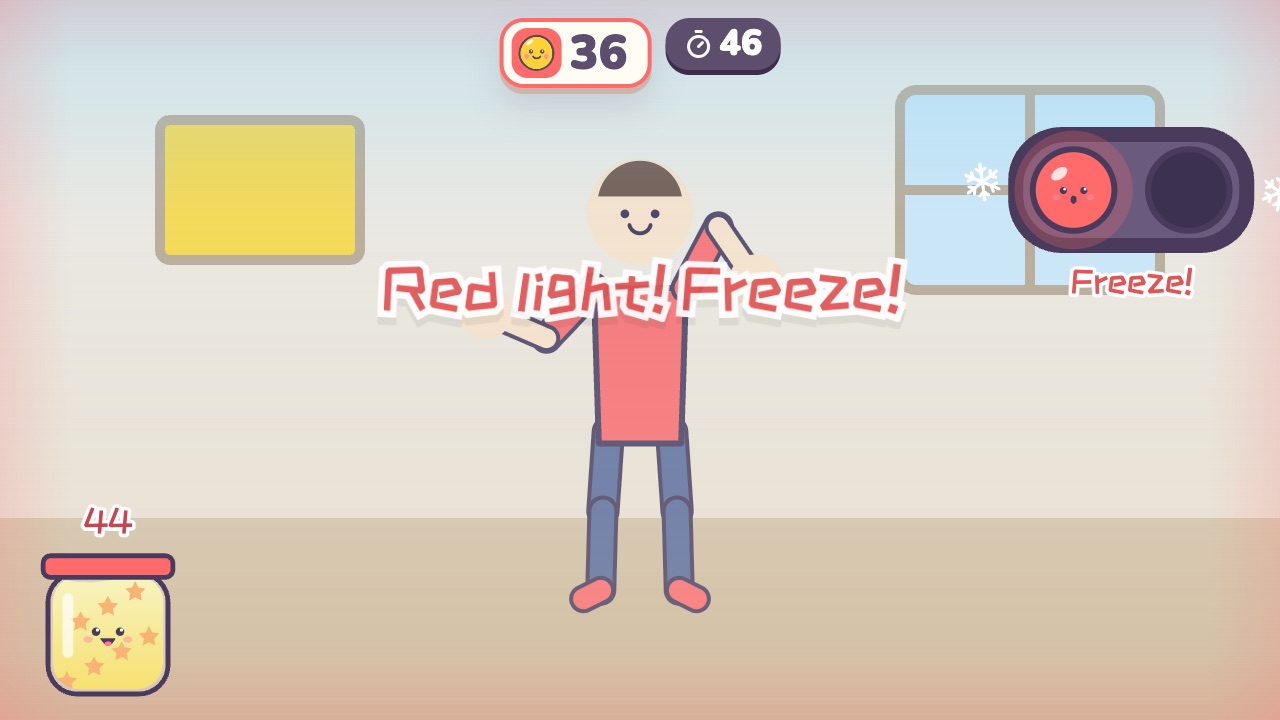 Red Light, Green LightMove like crazy on green light, and freeze the moment you hear red lightAges 3–10 · High activity · Whole body
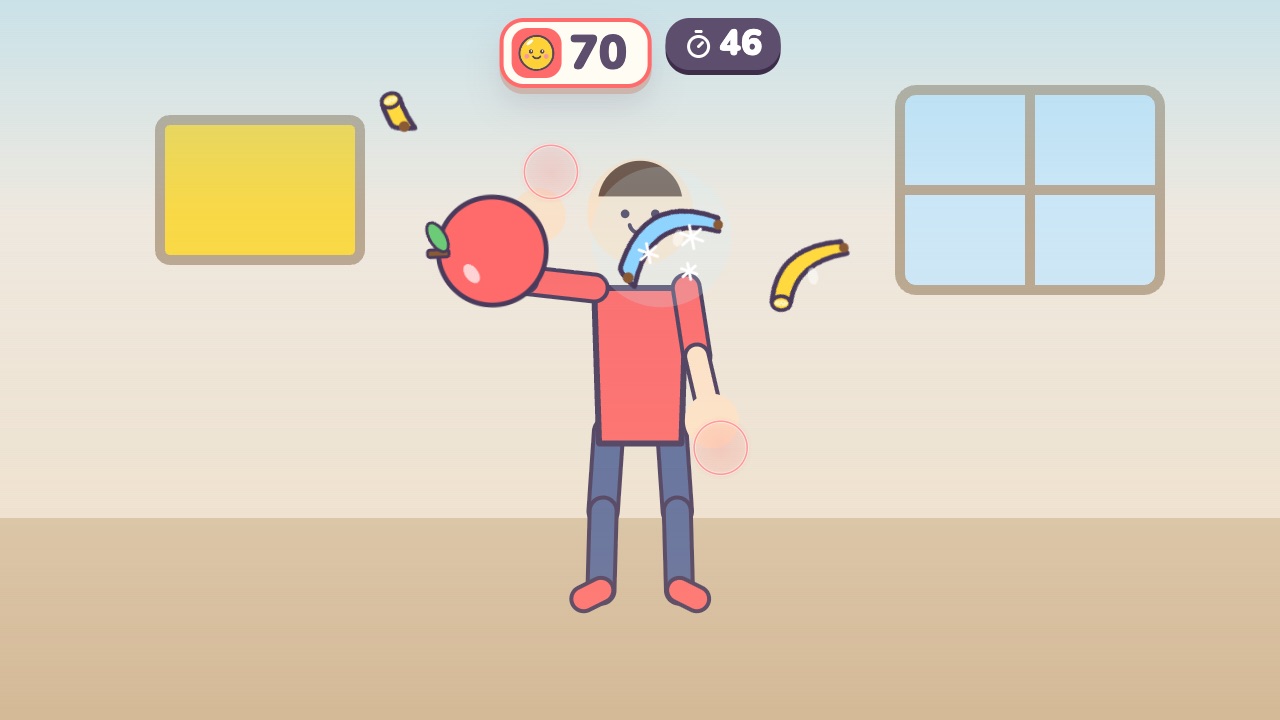 Fruit SlashSwing your hand to slice the flying fruit, and stay away from the bombsAges 6–14 · Moderate activity · Hands
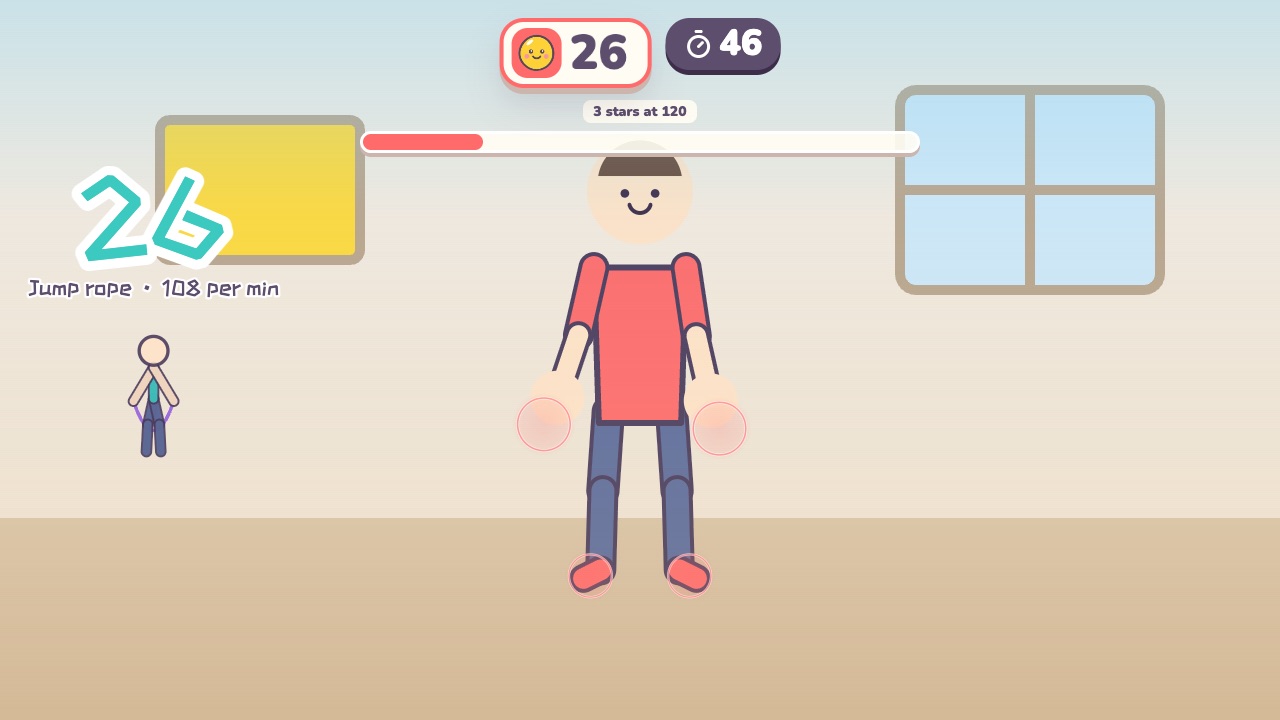 Jump Rope CounterWith a rope or without: how many jumps can you do in one minute?Ages 6–18 · High activity · Fitness / Run & jump / Rhythm
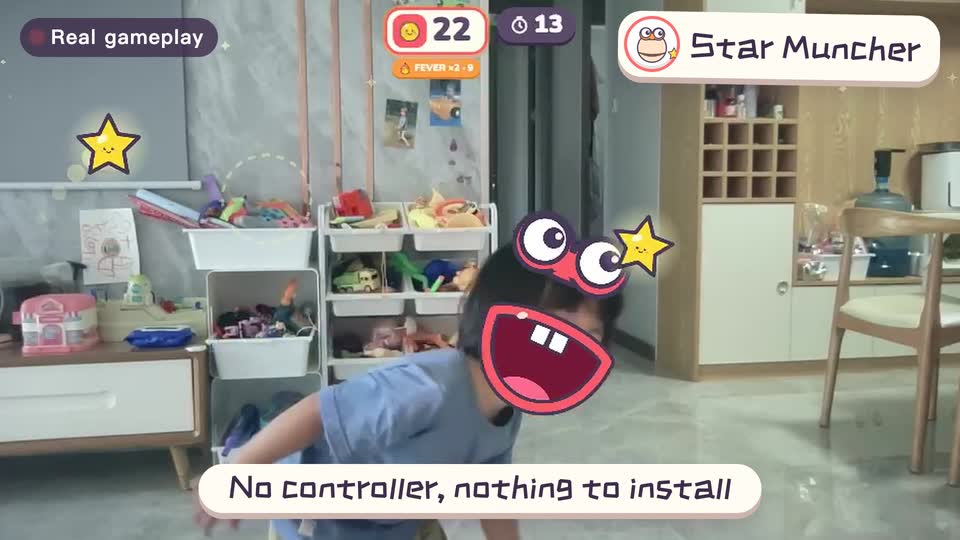
Real footage · 14 s
Kids stand in front of the computer and just move
100+ motion games for ages 3 to 18. Open the website and play: nothing to install, and the camera picture stays on this computer.
Keep reading
- How much should kids move each day? What the WHO says, and how to fit it in at home
- Screen time isn’t always sitting time: using screens to get kids moving
- When kids don’t like exercise: 6 ways to turn “I have to” into “I want to”
- Exercise and height: what actually helps kids grow (ages 6–14)
- Kids bouncing off the walls? A quiet 20-minute plan to burn off energy at home (ages 3–10)
- Winter exercise for kids: staying active when it’s too cold to go out