 DongDong Park
Whole-class games on a projector or interactive display: how to keep 30 kids involved
Updated
In front of a projector or an interactive display, only one or two kids can play at a time. What do the other 25 do? Give them a job: copy the same moves, count out loud, be the referee. Pick two-player games so the class can split into two teams and cheer. Add Nonstop, which switches games by itself, and the leaderboard’s big-screen mode, and the whole class gets a turn in one lesson while you barely touch the computer.
The idea: one or two up front, a job for everyone else
- Follow along. In games built on commands, the whole class stands by their desks and does the same moves. Only the players up front are scored, but everyone is moving.
- Count together. In counting games, the class counts out loud, and the player up front pushes harder.
- Referee. In games like Red Light, Green Light, the class watches for anyone who moved.
- Two teams. In two-player games, the left side is the red team and the right side the blue team. Each team sends one player, the rest cheer for their side, and the team with the higher total wins.
Games the whole class can follow along with
- Simon Says (ages 4 to 10): only move when Simon says so. The class plays along, anyone who slips up sits down, and the group with the most kids still standing wins.
- Red Light, Green Light (ages 3 to 10): move hard on green, and the whole class freezes on red. Kids referee each other.
- Rhythm Steps (ages 6 and up): step left, step right, jump and squat on the beat. With the class following the arrows on screen, it turns into a group routine.
- Dance Along (ages 12 and up): dance with the coach. The class dances too, and the player up front gets the score.
Two-team games
- Tug of War (ages 4 and up): two players, left and right, pull back hard on the rope, and a minute decides it. The class chants “heave, ho” to keep the rhythm.
- 100-Meter Dash (ages 8 and up): on your marks, get set, bang! Run on the spot flat out. It is over in seconds, so pairs rotate fast.
- Quick Draw (ages 8 and up): the first hand up after the signal wins, and a false start loses. The class watches for jumpers, and the room goes very quiet.
- Dodgeball (ages 6 to 14): read the shadow, jump the low balls, duck the high ones, lean away from the side ones. Both players dodge at once, and each team shouts “Duck!” for its player.
- Goalkeeper (ages 9 and up): two players guard the goal together with hands, feet and head, and the class counts the saves.
The routine: how 30 kids get a turn
- Before class, pick the age group and difficulty on the games page and turn on Nonstop: each game runs about 45 seconds, then the next one starts by itself.
- Players go up in pairs. When a round ends, press N for the next pair. Thirty kids make 15 pairs; at about a minute a pair plus the changeover, everyone has a turn in roughly 20 minutes.
- Tape two standing spots on the floor with a line behind them. The next pair waits behind the line.
- Set up a class roster so scores are saved under each kid’s nickname. Kids care a lot about their own stars.
- In the last few minutes, open the leaderboard in big-screen mode, which cycles through several boards on the classroom screen. The class’s own Today’s stars are behind the trophy button on the games page.
Connecting the camera to an interactive display or projector
- An interactive display with a built-in Windows computer. Open the site in its own browser. The camera built into the top of the display sits high and looks down, so kids have to stand farther back for it to see their feet. It is easier to plug in a USB webcam and set it on the teacher’s desk at about the kids’ chest height.
- A display with only its own built-in system. Connect your laptop to the display with an HDMI cable, switch to that input, and play from the laptop.
- A projector. Connect the computer with an HDMI cable. If the picture looks dim, turn off a few lights, but keep the spot where kids stand bright. Don’t darken the whole room.
- Step by step: on a TV or projector.
Standing spot and light
- Clear about 6 by 6 feet (2 m × 2 m) in front of the board. For two players, one stands on the left and one on the right.
- Don’t have a window facing the camera. If the players are backlit, close the blinds.
- Run the device check before class: camera, light, standing spot and computer speed in one go. More on the room in the setup guide.
Adjusting for preschool and the early grades
- One kid at a time is enough; with two, little ones tend to bump into each other. Keep the follow-along moves simple too: Simon Says, Red Light, Green Light and Animal Moves are plenty.
- Rounds of about 45 seconds fit how long kids this age can focus. Don’t stretch them.
- Start with demo mode: a cartoon kid plays a round first, and kids step up once they get it.
- Celebrate every round, whatever the score. Any points at all earn at least one star; read the kid’s nickname out loud on the results screen, and the kids in line have something to look forward to.
Common questions
There is only one camera. Won’t the kids who follow along without a score lose interest?
Mostly not. What kids care about is doing it together and getting their turn. You can also have each group keep its own score, so nobody is left with nothing to do.
What about the kids waiting for a turn getting noisy?
Give them jobs: referee, counter, cheer captain, rotating from group to group. Mark the line clearly: you are only in the line if you stand behind it.
What if we don’t get through the class in one lesson?
Scores stay on the class roster, so next lesson you can start with the kids who haven’t played yet, or make the Daily Challenge a fixed slot, with a few kids each day.
When the class follows along at their desks, leave space between desks and chairs, and remind kids to watch the corners. In a classroom, swap jumps for squats and small steps on the spot.
Games mentioned here
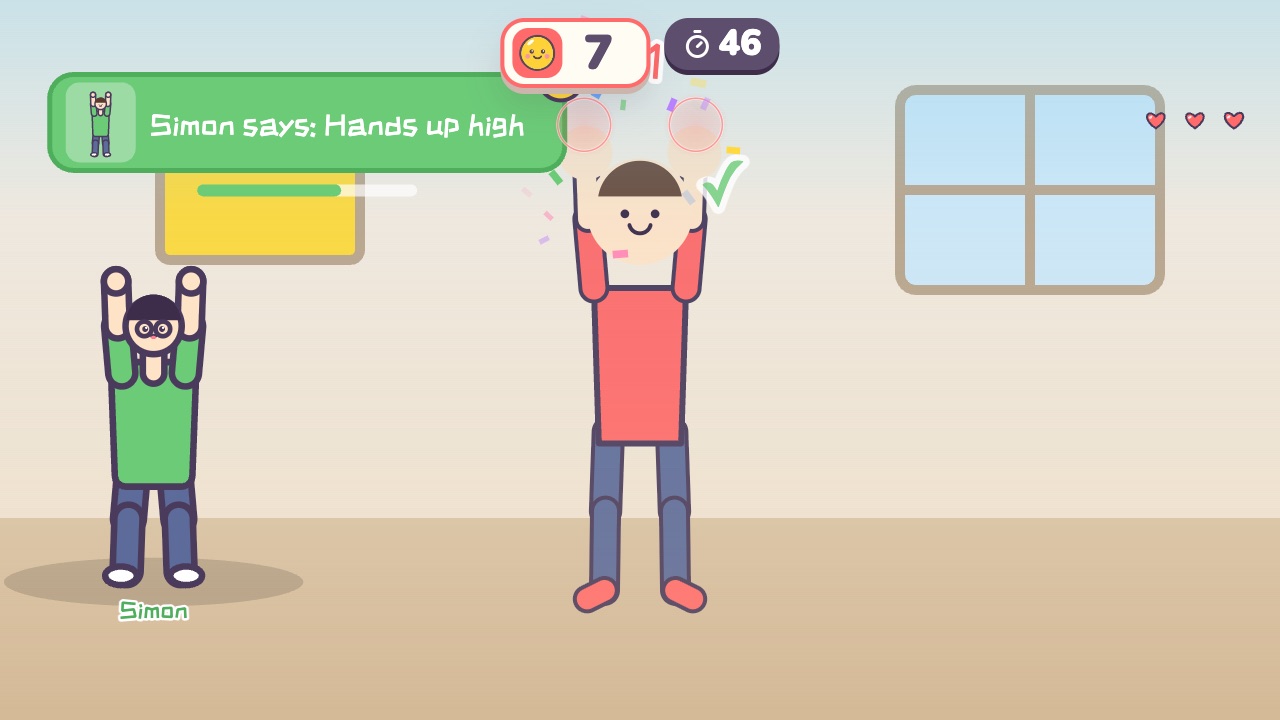 Simon SaysOnly move when Simon says soAges 4–10 · Moderate activity · Whole body / Thinking
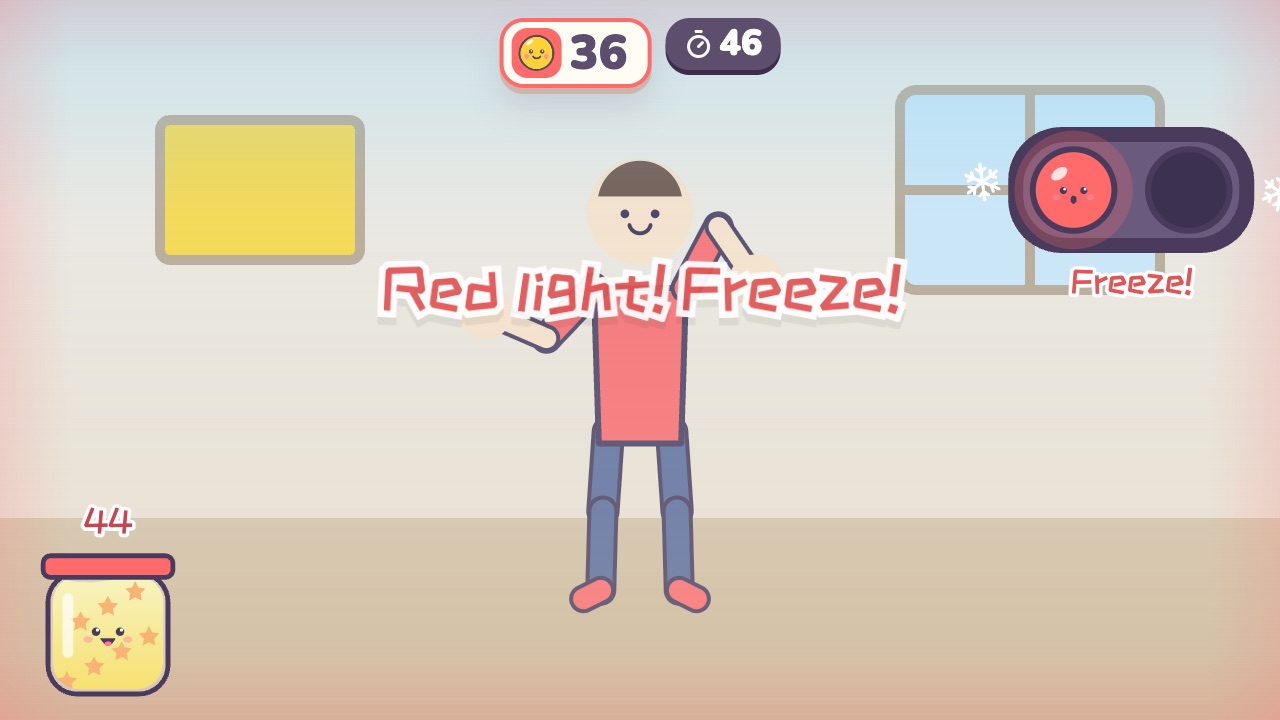 Red Light, Green LightMove like crazy on green light, and freeze the moment you hear red lightAges 3–10 · High activity · Whole body
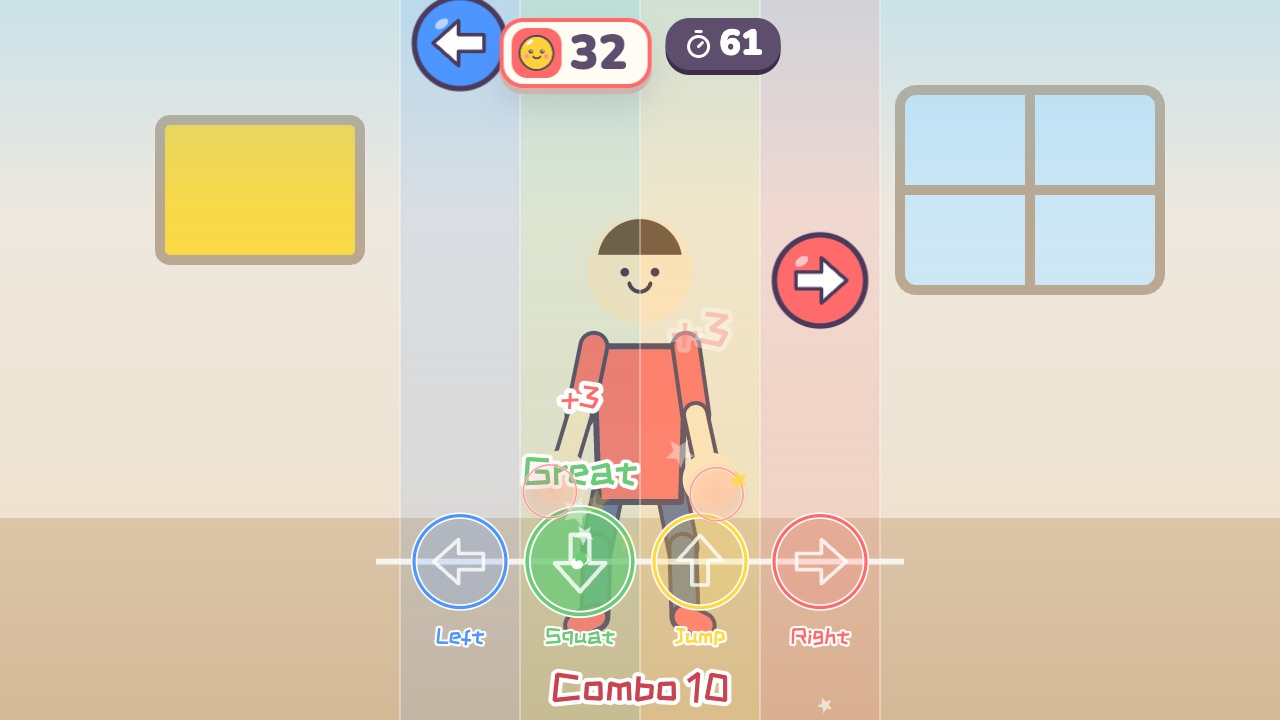 Rhythm StepsFollow the beat: step left, step right, jump and squatAges 6–16 · High activity · Rhythm / Whole body / Run & jump
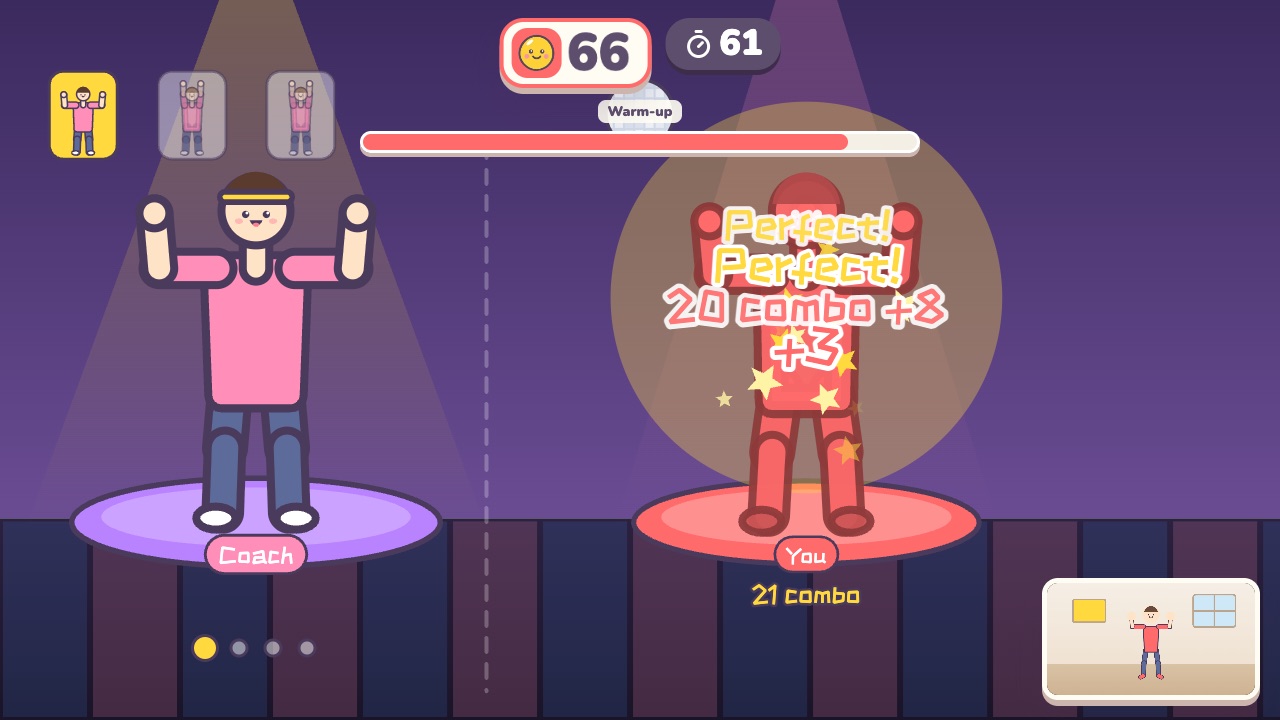 Dance AlongDance with the coach. Every beat is scored on how well you match the moveAges 12–18 · High activity · Rhythm / Whole body
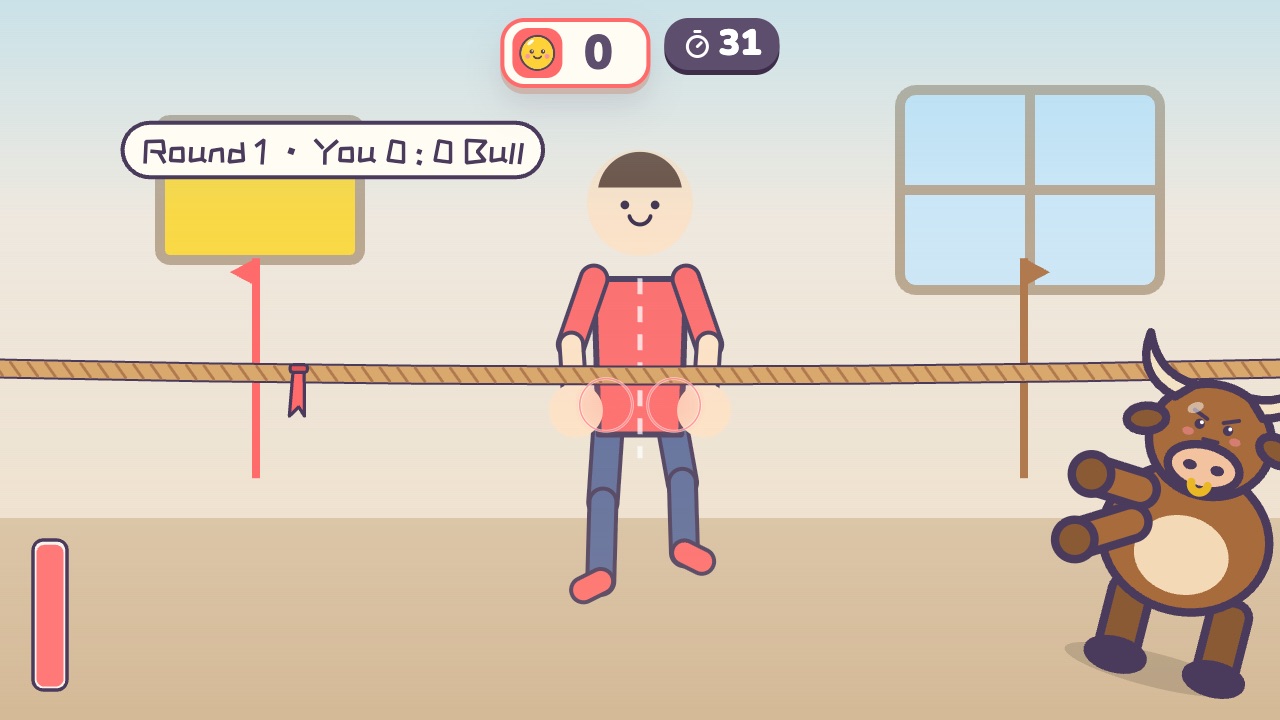 Tug of WarPull the rope back hard until the red flag crosses your lineAges 4–16 · High activity · Versus / Fitness / Hands
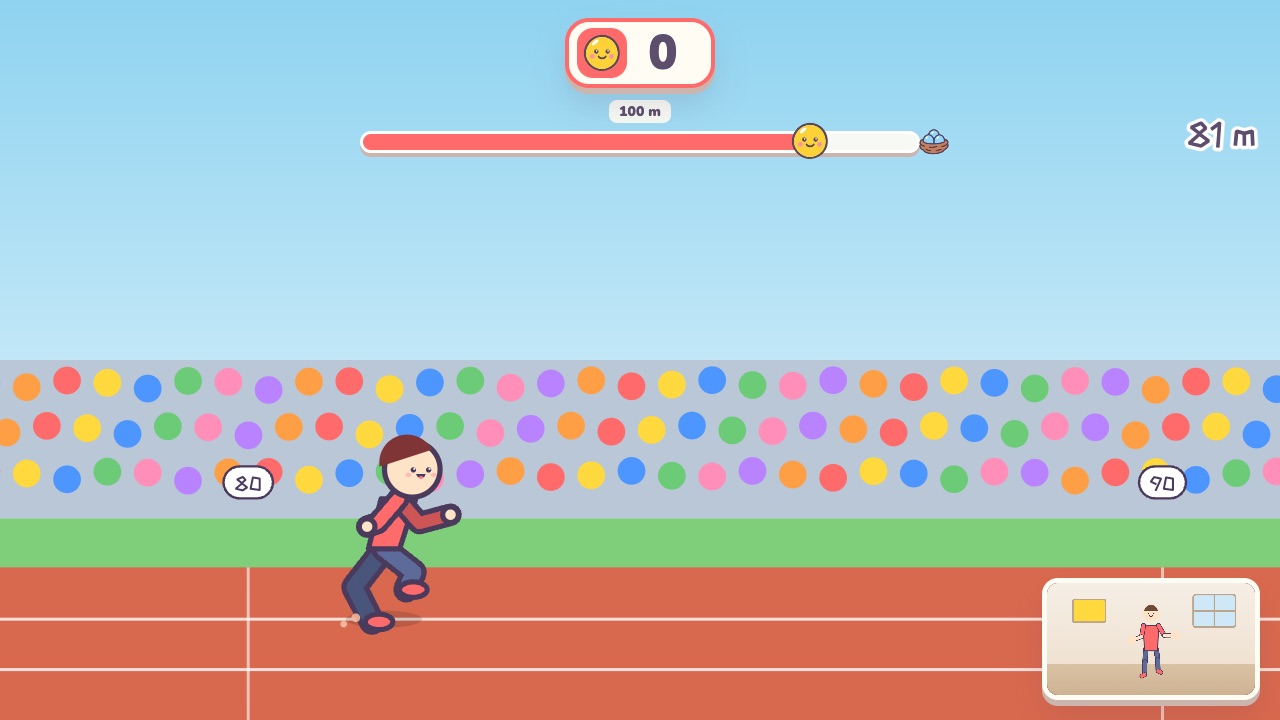 100-Meter DashOn your marks, get set, bang! Run on the spot as fast as you canAges 8–18 · High activity · Run & jump / Fitness / Versus
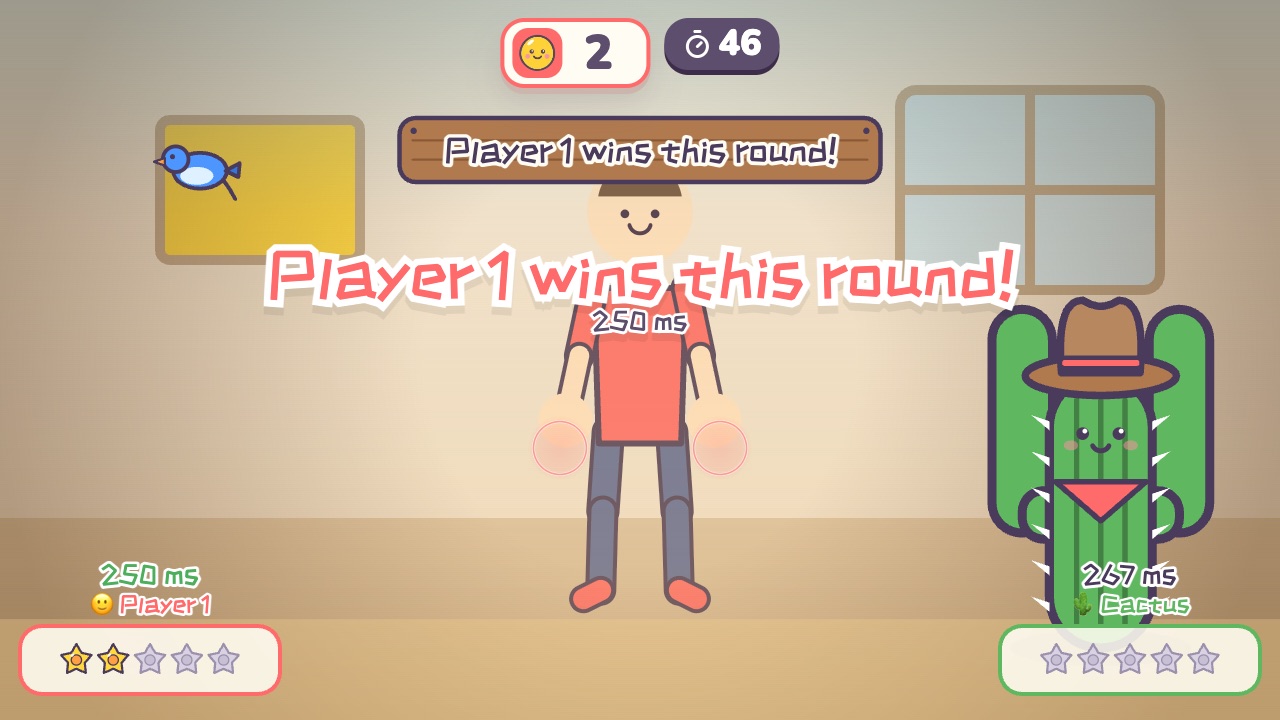 Quick DrawRaise your hand first when the signal comes, but move too soon and you loseAges 8–18 · Light activity · Versus / Calm
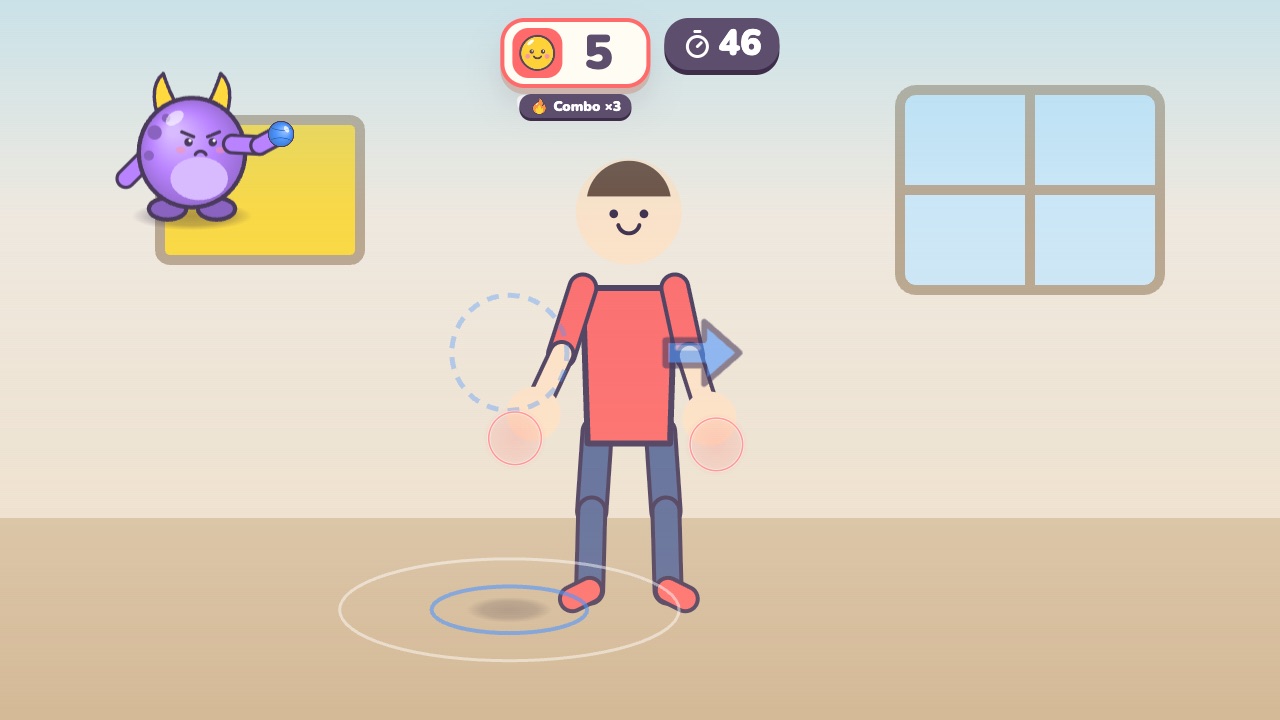 DodgeballWatch the shadow: jump the low balls, duck the high ones, dodge the side onesAges 6–14 · High activity · Whole body / Run & jump / Fitness
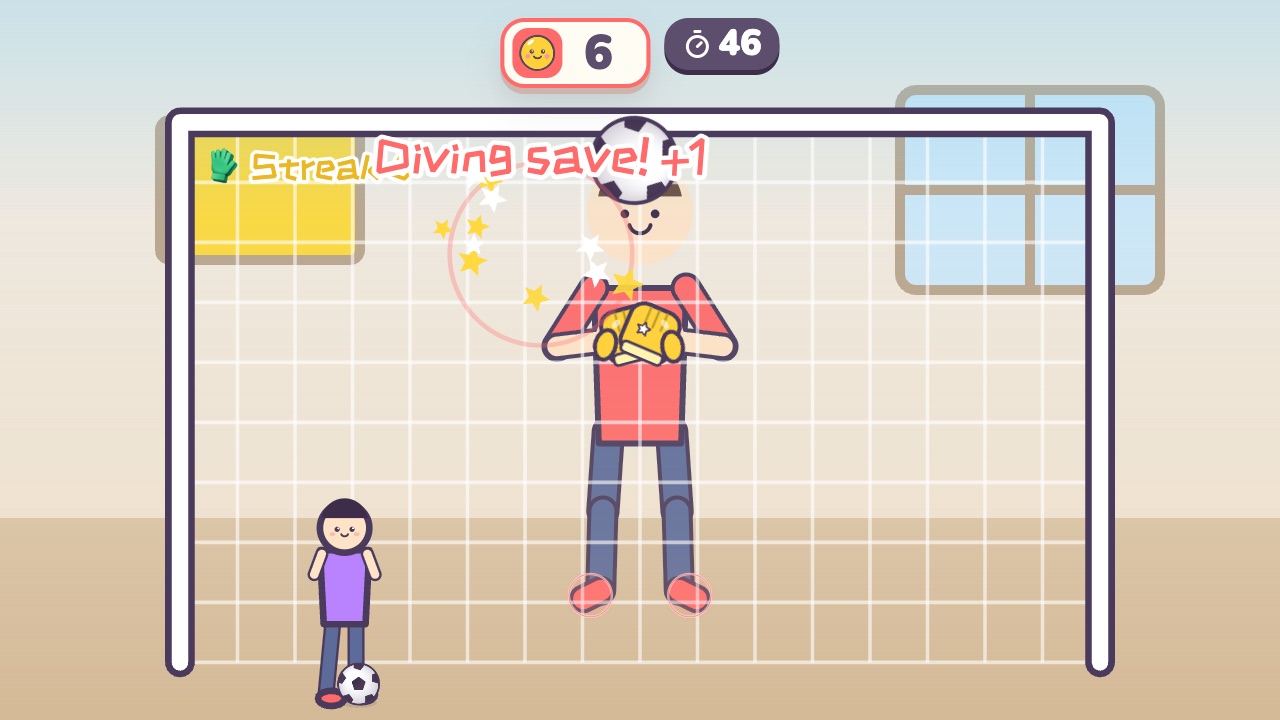 GoalkeeperUse your hands, feet and head to keep the shots out of the goalAges 9–16 · High activity · Whole body / Hands / Run & jump
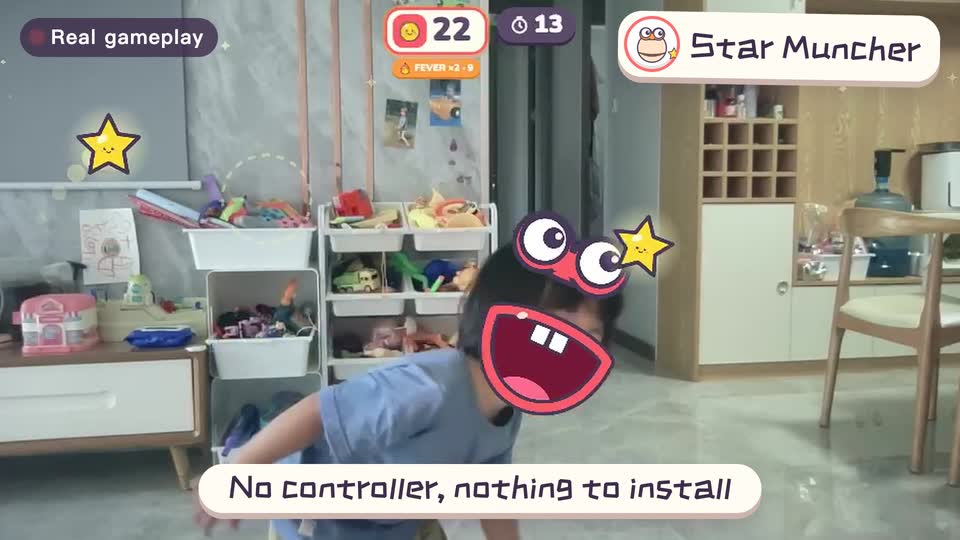
Real footage · 14 s
Kids stand in front of the computer and just move
100+ motion games for ages 3 to 18. Open the website and play: nothing to install, and the camera picture stays on this computer.
Keep reading
- How much should kids move each day? What the WHO says, and how to fit it in at home
- Screen time isn’t always sitting time: using screens to get kids moving
- When kids don’t like exercise: 6 ways to turn “I have to” into “I want to”
- Exercise and height: what actually helps kids grow (ages 6–14)
- Kids bouncing off the walls? A quiet 20-minute plan to burn off energy at home (ages 3–10)
- Winter exercise for kids: staying active when it’s too cold to go out